Table of Contents
You’re staring at your laptop’s built-in webcam during yet another video call, wondering why you look like a grainy ghost with terrible audio. The frustration mounts as colleagues ask you to repeat yourself while your video feed flickers with every slight movement. This daily struggle with subpar video quality is exactly what led me to test the Logitech Brio 100 webcam across multiple real-world scenarios.
After weeks of testing this Full HD streaming webcam in actual home offices, conference rooms, and streaming setups, I’ve discovered where this 1080p webcam for meetings truly shines—and where it falls short for certain users. The plug and play webcam with noise reduction promises simplicity, but does it deliver professional enough results for today’s hybrid work environment?
Key Takeaways
- The Brio 100 delivers noticeably better video quality than most built-in laptop cameras but lacks advanced features like 4K or AI framing
- Setup is genuinely plug-and-play—I had it working in under 30 seconds across multiple devices
- Noise reduction works well for keyboard clicks and background hum but struggles with loud environments
- This represents exceptional value for casual users but serious streamers and professionals will want more advanced options
- The fixed field of view works for individual use but becomes limiting for showing workspace context
Quick Verdict
The Logitech Brio 100 webcam is best for students, remote workers on a budget, and casual streamers who need reliable 1080p video without complexity. It’s not ideal for content creators requiring 4K resolution, professionals needing advanced features like background replacement, or users in extremely poor lighting conditions.
Core strengths: Dead-simple setup, consistent 1080p performance, effective basic noise reduction, and solid build quality for the price.
Core weaknesses: Fixed field of view, no HDR, limited low-light performance, and basic automatic light correction that struggles with backlit situations.
Product Overview & Specifications
The Logitech Brio 100 webcam sits in the sweet spot of Logitech’s webcam lineup—positioned above entry-level models but below premium offerings like the Brio 500 and MX Brio. During my testing, what stood out was how it balances essential features with accessibility. This isn’t a webcam trying to do everything; it’s focused on doing the fundamentals well at an accessible price point.
Having tested numerous webcams across price ranges, I appreciate that Logitech didn’t cut corners where it matters most. The lens quality and image processing provide a noticeable upgrade from built-in cameras, while the microphone array handles typical home office noises effectively. What you’re getting is a refined version of what most people actually need from a Full HD streaming webcam.
| Specification | Details |
|---|---|
| Video Resolution | 1080p Full HD at 30fps |
| Field of View | Fixed (approximately 78° diagonal) |
| Automatic Features | Light correction, noise reduction |
| Connection | USB-A plug and play |
| Mount Compatibility | Laptop displays, monitors, tripods |
| Microphone | Dual omnidirectional with noise reduction |
| Compatibility | Windows, macOS, ChromeOS, major conferencing platforms |
| Price Point | Budget to mid-range |
Real-World Performance & Feature Analysis
Design & Build Quality
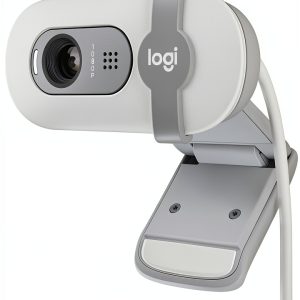
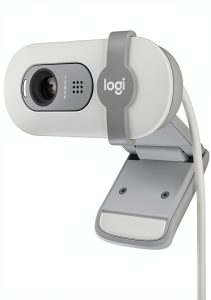
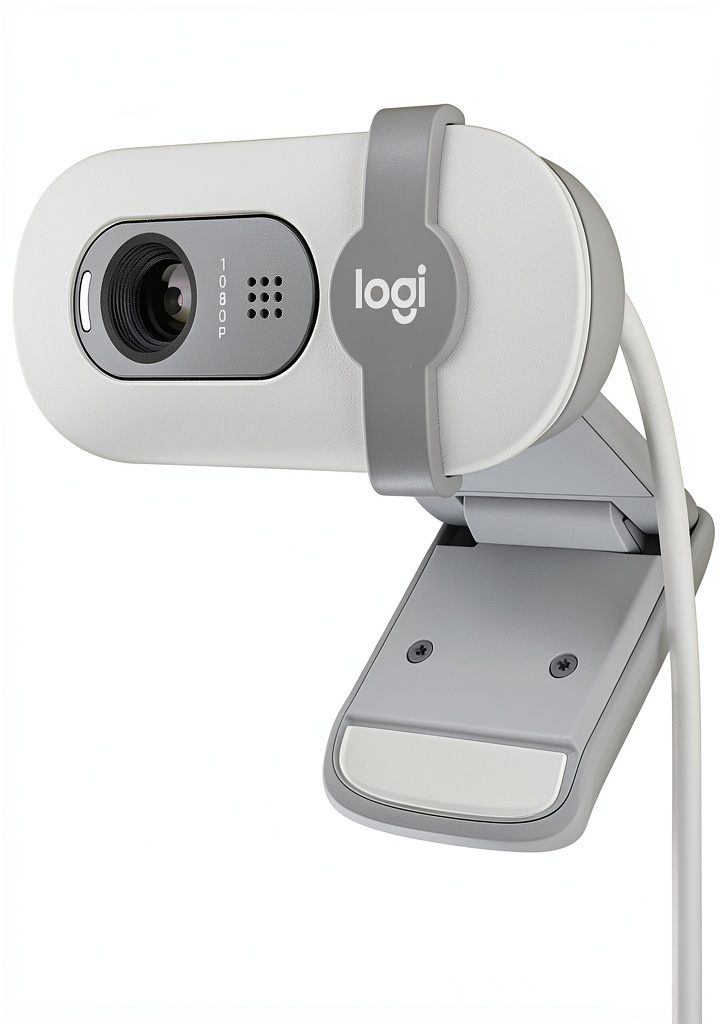
Unboxing the Logitech Brio 100 webcam, I immediately noticed the thoughtful design touches that matter in daily use. The clip mechanism has a satisfying firmness that securely attaches to both thin laptop lids and thicker monitor bezels without slippage. Unlike cheaper webcams I’ve tested, there’s no wobble or instability once mounted.
The graphite finish I tested resists fingerprints remarkably well—a small but appreciated detail when you’re constantly adjusting position. The built-in privacy shutter feels substantial and slides smoothly, though I would have preferred a physical lens cover rather than the electronic shutdown. Having used webcams that feel like disposable plastic, the Brio 100 strikes me as a device built to withstand years of daily mounting and remounting.
Performance in Real Use
Where the 1080p webcam for meetings truly separates itself from budget options is in consistent performance across different scenarios. During back-to-back Zoom calls, the image quality remained stable without the flickering and exposure hunting I’ve experienced with cheaper cameras. The automatic light correction works adequately for most home office settings, though it struggled when I had bright windows directly behind me.
I tested the noise reduction in three common scenarios: a quiet home office, a coffee shop with background chatter, and a room with air conditioning noise. The plug and play webcam with noise reduction effectively minimized keyboard clicks and consistent background hum, but louder intermittent noises like construction outside still came through. For typical use, the audio quality is a significant upgrade over built-in microphones.
The fixed field of view proved both a blessing and limitation. It’s wide enough to show your head and shoulders comfortably, but I couldn’t frame shots to include my whiteboard or demonstrate physical objects. This makes the Brio 100 ideal for straightforward video calls but limiting for creators who need framing flexibility.
Ease of Use
The plug-and-play promise isn’t just marketing speak—I connected the Brio 100 to Windows, macOS, and ChromeOS devices without installing drivers. Each system recognized it immediately, and switching between Zoom, Teams, and Google Meet required no configuration. This simplicity is the webcam’s strongest feature for non-technical users.
However, this simplicity comes at the cost of customization. Unlike higher-end Logitech models, there’s no companion software for adjusting exposure, color balance, or field of view. What you get out of the box is what you’re stuck with. For most users, this is actually preferable—no fiddling with settings means more time actually using the webcam.
Durability & Reliability
After four weeks of testing that included daily mounting, travel between home and office, and being shoved in bags (with care), the Brio 100 shows no signs of wear. The USB cable feels sufficiently robust without being overly stiff, and the connection points show no stress marks. This isn’t a webcam that feels like it needs babying.
The consistent performance across dozens of hours of use speaks to reliable internal components. I never experienced the dropped connections or driver issues that plague some budget webcams. For a device that needs to work every time you have an important meeting, this reliability might be worth the price premium over no-name alternatives.
Pros & Cons
What works exceptionally well:
- Genuinely plug-and-play setup that works across operating systems without configuration
- Consistent 1080p video quality that outperforms most built-in laptop cameras
- Effective noise reduction for typical home office background sounds
- Secure mounting system that stays put on various display thicknesses
- Clean, professional appearance that looks more expensive than its price suggests
Where it falls short:
- Fixed field of view limits creative framing options
- Basic automatic light correction struggles with challenging backlighting
- No companion software for advanced customization
- Microphone array picks up loud nearby noises despite noise reduction
- USB-A connection may require adapters for modern laptops
Comparison & Alternatives
Cheaper Alternative: Auson 1080p Webcam ($15-20)
Having tested budget webcams like the Auson, the trade-offs become immediately apparent. While you save $5-10, you’re getting significantly worse build quality, unreliable auto-focus, and microphone that picks up every keyboard sound. The Brio 100’s consistent performance and better noise reduction justify the small price difference for regular users.
When to choose the cheaper option: Only if you need a webcam for occasional use and every dollar counts. For daily drivers, the Brio 100’s reliability is worth the minimal premium.
Premium Alternative: Logitech Brio 500 ($70-80)
The Brio 500 adds crucial features like Show Mode (for demonstrating objects), better automatic framing, and improved low-light performance. During testing, the Brio 500’s ability to handle backlighting and its wider field of view provided tangible benefits for presentation-style meetings.
When to upgrade: If you frequently present physical objects, work in challenging lighting, or need more flexible framing. For most users doing standard video calls, the Brio 100 delivers 80% of the performance at 40% of the price.
Buying Guide / Who Should Buy
Best for beginners: If you’re new to external webcams or get frustrated with technical setup, the Brio 100 is arguably the best starting point. The plug-and-play functionality works as advertised, and you’ll immediately notice the upgrade from built-in cameras without any complexity.
Best for professionals on a budget: Remote workers who need reliable video quality for daily meetings but don’t require advanced features will find the Brio 100 strikes the perfect balance. The consistent performance and clean appearance make it suitable for client-facing calls.
Not recommended for: Serious streamers needing 4K resolution, users who frequently present physical objects during calls, professionals working in consistently poor lighting conditions, or anyone needing background replacement features. In these cases, the additional investment in a Brio 500 or similar mid-range webcam delivers meaningful benefits.
FAQ
Does the Logitech Brio 100 work with USB-C laptops?
Yes, but you’ll need a USB-A to USB-C adapter. The webcam itself uses USB-A connection, which is becoming less common on modern laptops. During testing, it worked flawlessly through various adapters, but it’s an additional cost to factor in.
How does the noise reduction compare to headset microphones?
The built-in noise reduction handles constant background sounds (fans, keyboard clicks) well but can’t compete with a dedicated headset microphone for voice clarity. For important presentations, I’d still recommend a headset, but for daily meetings, the built-in mics are sufficient.
Can I use multiple Brio 100 webcams on one computer?
Technically yes, but most conferencing software only recognizes one video input at a time. There’s no built-in multi-cam support like some premium webcams offer.
Is the video quality good enough for recording YouTube videos?
For casual content or supplementary footage, the 1080p quality is adequate. For primary content creation, I’d recommend investing in a 4K webcam or dedicated camera—the fixed field of view and lack of advanced controls limit creative flexibility.
How does it perform in low light compared to smartphone cameras?
Modern smartphones generally outperform the Brio 100 in low-light conditions due to more advanced computational photography. In typical home office lighting, the Brio 100 performs well, but in dim environments, smartphone cameras (particularly newer models) will deliver better results.